
How to add a new campsite or pitch on Pitchviewer
Add a campsite in a few taps and upload photos of your pitch, the sanitary block or the facilities. Here's exactly how it works.
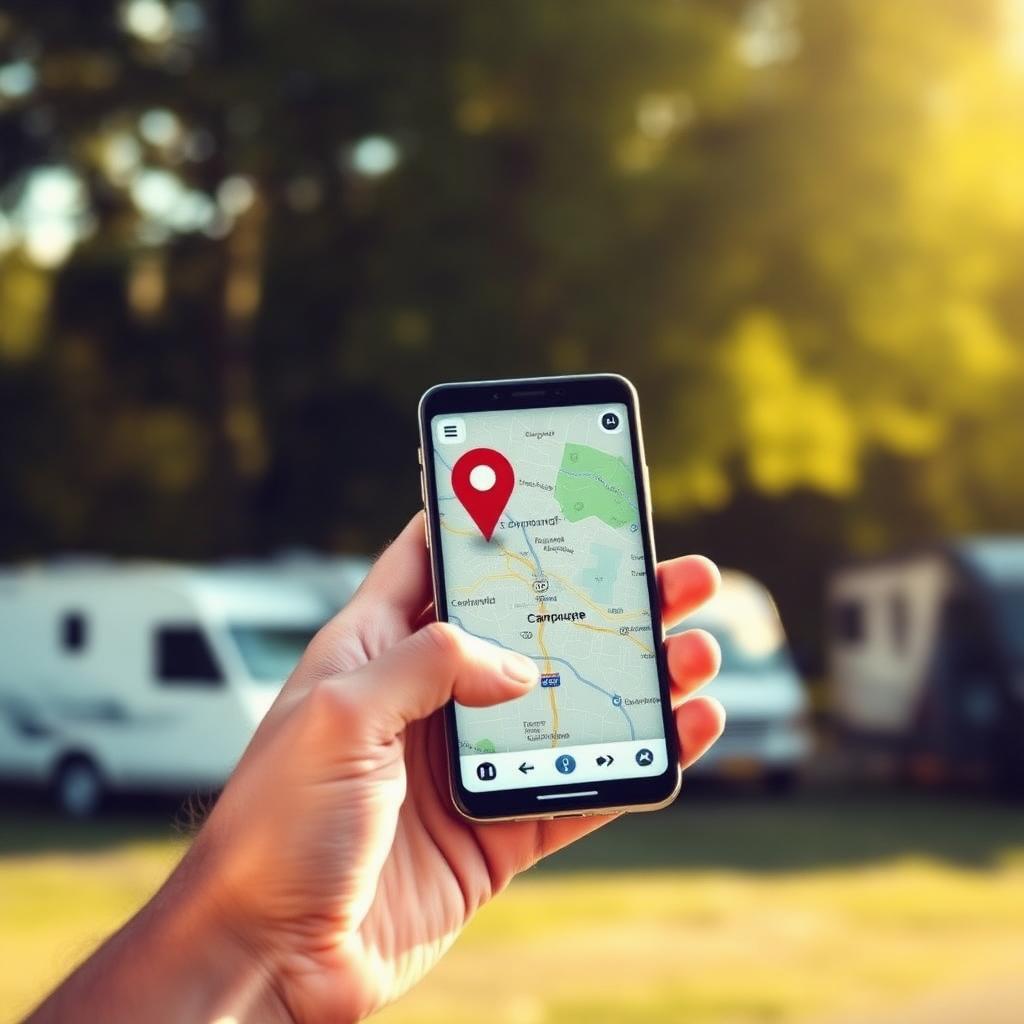
Pitchviewer runs on real photos from real campers. The more places we map together, the better everyone can pick their next holiday. This short guide shows you how to add a new campsite and how to upload photos — of a pitch, the sanitary block or the facilities.
Adding a new campsite
Is the campsite you stayed at not yet on Pitchviewer? Add it in a few steps:
- Tap the + button in the top right (desktop) or at the bottom (mobile) and choose Add campsite.
- Search by name or town. We search Google Maps directly, so if the campsite is on the map, you'll find it.
- Check the details. Name, address, town, website and phone number are pulled from Google Maps automatically. Spot a mistake? Fix it right away.
- Confirm with 'Create campsite'. You go straight to the new campsite page — confetti included.
If the campsite already exists on Pitchviewer, it shows up at the top of the results so you can jump into the existing page.
Adding a pitch
A pitch is one specific camping spot within the site — including its view, neighbours, hookups and vibe. Here's how to add one:
- Open the campsite page for the site you stayed at.
- Tap the + button and choose Add pitch. The campsite is preselected automatically.
- Upload your photos. Multiple angles help: overview, hookups, view, neighbours.
- Fill in the details. Pitch number (if you know it), size, shade, amperage and whether it's fully serviced.
- Submit. After a quick moderation check your pitch goes live and helps other campers immediately.
Using the + button from the homepage instead of a campsite page? Pitchviewer will first ask which campsite it belongs to. Can't find it? Pick Create new campsite and follow the steps above.
Adding sanitary and facility photos
You can now upload sanitary and facility photos separately — exactly what fellow campers usually search for.
- Sanitary photos — via the + button choose Add sanitary. Think showers, sinks, toilets and washing-up areas.
- Facility photos — choose Add facilities for the playground, pool, restaurant, reception or shop.
- Surroundings — from the campsite page you can also add photos of the entrance, parking and the immediate area.
On a campsite page and using the + button? That site is preselected. From the homepage you pick the campsite yourself.
Tips for useful photos
- Shoot in daylight. Early morning or late afternoon gives the most natural look.
- Show multiple angles. One wide shot plus a few detail photos beats ten similar ones.
- Show the details. The power box, the water tap, the drain, the shower floor — that's exactly what other campers look for.
- No recognisable people in frame. For the privacy of other campers.
In closing
Every photo you upload makes Pitchviewer a little better. Thank you for contributing — and enjoy your next pitch!
Leave a comment
No account needed. We publish fitting comments after a check.